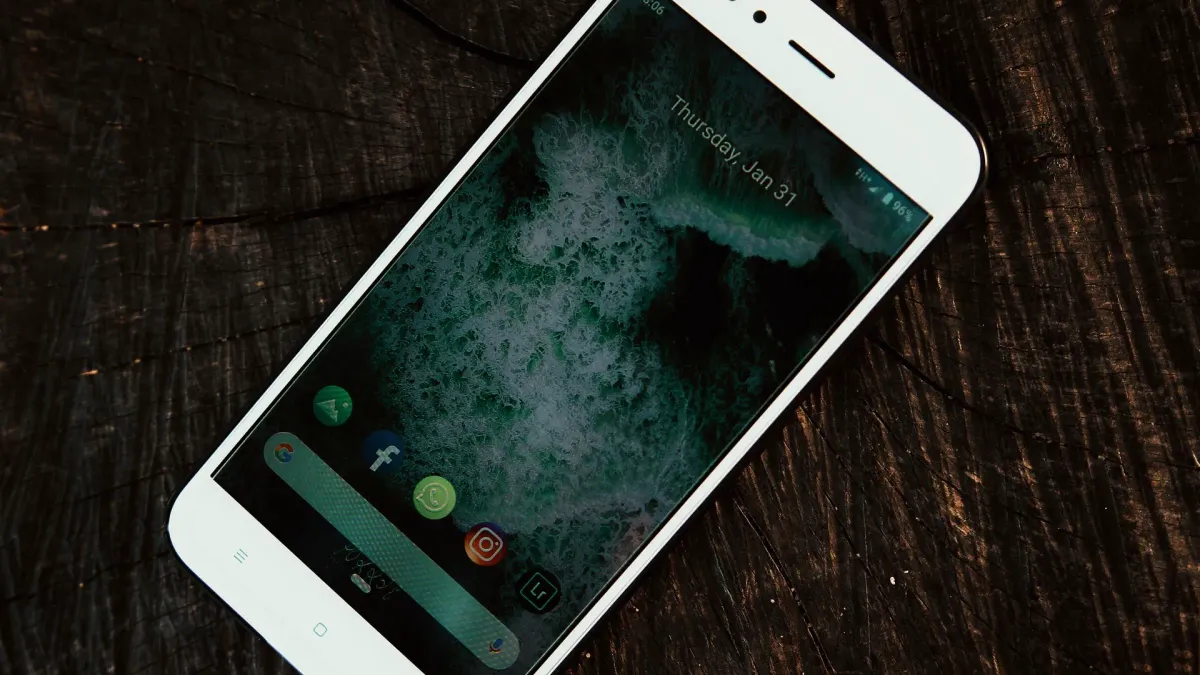
A well-preserved, hand-me-down Android smartphone from the family (Android 8.0 or newer) is often a much better Christmas gift than a basic senior flip phone—provided it is cleanly factory reset before gifting, cleared of unnecessary apps, and set up with an accessible interface like the Juno Easy Launcher. This gives Grandma or Grandpa a bright display, a solid camera for grandchild photos, and WhatsApp without having to struggle through nested Android menus.
In this step-by-step checklist, you’ll learn what to check, delete, and configure on the old device before Christmas Eve so the smartphone works right out of the box under the tree.
Is the Old Family Phone Still Worth It? (3-Point Quick Check)
Before you invest time in setting it up, check the battery, screen, and Android version of the old device—if the hardware is solid, a 2- to 4-year-old mid-range smartphone beats almost any budget senior phone.
Quickly run through these three checks before resetting:
- Test battery health: Charge the device to 100% and leave it on standby for a day. If it loses more than 20–25% overnight without use, or if the battery is visibly swollen, consider replacing the battery or choosing another phone. (More tips: Parents’ Phone Always Dead? Battery Solutions for Seniors)
- Check the Android version: Go to Settings > About phone > Android version—it should be at least Android 8.0. Almost any device from 2018 or later meets this easily.
- Inspect screen & speakers: Check for deep cracks (which can hurt fingertips), clear earpiece volume during a test call, and a working charging port (ideally include a magnetic charging cable or a small charging dock as an extra accessory).
Step 1: Clean Fresh Start with a Factory Reset
Never pass down a used smartphone with your old accounts, photos, or chat histories—a full factory reset prevents confusion, storage issues, and accidental purchases on your saved credit card.
- Back up any personal data you still need.
- First, remove your own Google account under Settings > Accounts (this is important because of Google’s Factory Reset Protection/FRP—otherwise the phone will ask for your old password after the reset).
- Run the Factory Reset (Settings > System > Reset options > Erase all data).
- While you’re at it, grab a SIM card without a PIN lock (or write the new PIN down in large print on a card), along with a grippy silicone case and a tempered glass screen protector.
Step 2: Set Up a Safe Google Account for Seniors
The smartphone needs a Google account for the Google Play Store and updates, but you should not add a payment method and should use a neutral account name.
- Dedicated account instead of a family login: Create a separate Google account for your parents or grandparents (or sign in with their existing account if they already had a smartphone).
- Do not link a credit card or PayPal: This reliably protects older adults from accidental in-app purchases or subscription traps. (See also: Protect Seniors from Subscription Traps & Accidental Purchases on Android)
- Save login details: Store the email address and password in your own password manager—in everyday use, your parents will never need to enter these details again.
Step 3: Remove Bloatware & Pre-Install Essential Apps
Install all needed apps before Christmas Eve and uninstall or disable pre-installed games, news feeds, and ad-heavy apps.
For most families, these essentials are plenty:
- WhatsApp: Verify it once with Grandma or Grandpa’s phone number, set a profile picture, and pin the most important family members or the family group chat right at the top. (Guide: Easy WhatsApp Setup for Seniors)
- Camera & default Gallery: Take a quick test photo to verify that pictures come out sharp and open smoothly.
- Install system updates: Download all pending Android and app updates over Wi-Fi beforehand so update prompts don’t interrupt the holidays.
Step 4: Set Up Juno Easy Launcher as the Permanent Home Screen
With the Juno Easy Launcher, you can turn the reset Android device into a clear, senior-friendly smartphone with large photo tiles and accidental-tap protection in about 10 minutes.
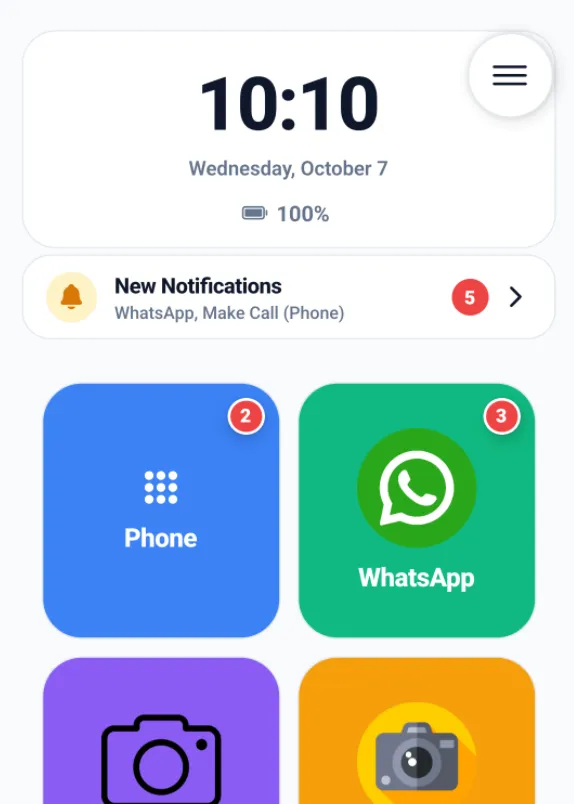
When configuring the PIN-protected Admin area, it’s best to follow this order:
- Set as default home screen: Activate Juno as the default launcher and, if needed, enable Kiosk Mode under Safety & Protection so the familiar home screen can’t be exited by mistake.
- Create large Contact & WhatsApp tiles: Add dedicated photo tiles for the 3–4 most important people—either as a Call tile or a green WhatsApp direct chat tile (one tap opens the chat with the grandkids).
- Add everyday helpers: Depending on their needs, place an SOS/Emergency tile, the built-in Shopping List (
easy-launcher://list), the ad-free QR Code Scanner, or direct tiles for Camera and Gallery on the home screen. - Enable 3-level notifications: Grant Android notification access once under Home Screen & Appearance > Notifications. Juno will then show clear plain-text summaries at the top, such as “2 new WhatsApp messages”.
- Set Volume Lock & Admin PIN: Set a 4-digit Admin PIN and turn on Volume Lock so pressing the side buttons by accident won’t mute the phone.
💡 Pro tip before wrapping: At the end, go to Backup & Help > Backup Layout (Share) to export your Juno Backup Code (
EASY_LAUNCHER_BACKUP:...) and save it in your own notes. If the phone ever needs to be replaced, you can restore this exact layout in seconds. (Read more: Switching Phones for Seniors Without Relearning)
Step 5: The 5-Minute Handover Under the Christmas Tree
Don’t overwhelm your parents or grandparents with a long tech tutorial on Christmas Eve—three simple actions are more than enough for day one.
During the handover, stick to just these three things together:
- Unlocking & home screen: Show where to press to turn the screen on (use fingerprint or a very simple unlock method if needed) and what their home screen looks like.
- Test one call & one grandchild photo: Have Grandma or Grandpa tap your photo tile right away and send a first Christmas photo via WhatsApp to create an immediate sense of success.
- Pick a fixed charging spot: Choose a permanent place for the charger together (for example, next to their favorite armchair or on the nightstand) so charging becomes a habit from the very first evening.
Quick Checklist Before Christmas Eve
| Step | Task | Done? |
|---|---|---|
| 1. Hardware | Battery life, screen, and charging cable checked | [ ] |
| 2. Reset | Old Google account removed & factory reset completed | [ ] |
| 3. Account | Dedicated Google account set up without payment methods | [ ] |
| 4. Apps | WhatsApp configured, updates installed, bloatware removed | [ ] |
| 5. Juno | Juno set as default launcher + Kiosk Mode + Admin PIN active | [ ] |
| 6. Safety | Volume Lock enabled & SOS/emergency contact tested | [ ] |
| 7. Backup | Juno layout backup code saved safely on your own device | [ ] |
📱 Ready for your Christmas project?
Download Juno Easy Launcher for free from the Google Play Store and turn any old Android phone into a thoughtful, safe senior smartphone in minutes:
👉 View Juno Easy Launcher on Google Play Store
Still deciding whether to prepare a used smartphone or buy a new one? Read our comparison too: Gifting a Senior Phone for Christmas? Why a Prepared Smartphone Is the Better Gift.